
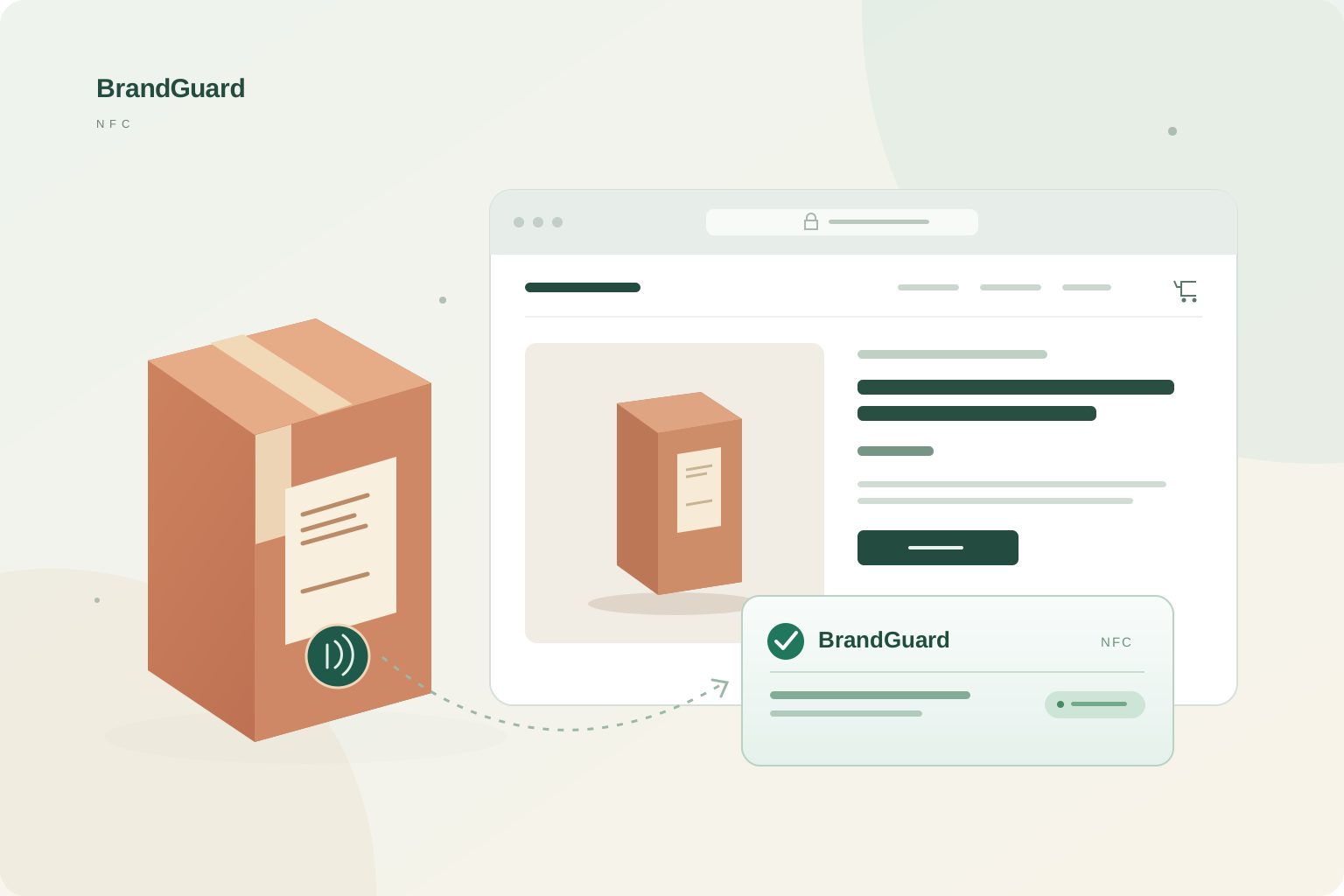
If you have built your brand website with WordPress or sell through WooCommerce, customers already have somewhere to learn about your products and contact you. After delivery, they may also want to check the item they received, ideally on your brand's own website.
BrandGuard provides a WordPress verification plugin for this purpose. Used with secure NFC tags on your products and the BrandGuard verification service, it brings the result into your existing product pages. After checking an item, customers can carry on reading its instructions or get in touch with your brand.
Add verification to your existing store with a plugin
You or your website provider can install the BrandGuard plugin on your WordPress site and configure the pages for the products you want customers to verify. In a WooCommerce store, the verification panel can appear on the relevant product detail page, alongside its photographs, description and support information.
BrandGuard checks the secure NFC tag through its online service; the plugin displays the official result on your site. Your team keeps managing the product content, without having to build a separate NFC verification platform. The service works with secure NFC tags fitted to your products.
A tap on the product brings the customer back to your page
For example, a customer receives a product with a secure NFC tag, holds an NFC-compatible phone near it and opens the link offered by the phone. The browser first connects to BrandGuard, whose servers check the information from that read. Once verification succeeds, the browser redirects the customer to the brand product page chosen during setup.
The BrandGuard panel on that page then displays the result of this verification. The plugin uses BrandGuard's verification API to retrieve and display the result, so your website team does not have to develop these functions from scratch. Customers are back on your site, where they can also find the product description, care advice and support details.
The result relates to that particular read. Visiting the product page directly or reopening an old link does not create a new valid verification. To check the item again, the customer should tap its tag again. Our guide to NFC verification on your brand website explains the full journey.
See the result within a familiar shop page
The illustrations below are based on an actual website installation test, with the brand and product details anonymised. They show the verification panel inside the shop page, surrounded by the site navigation and product content. It tells the customer whether the tag passed this verification and shows details such as the product, individual item reference and verification time.
With a tag that supports opening detection, the panel also reports the seal state separately. One example shows a verified tag and a sealed package. In the other, the tag also passes verification, but an additional notice says the package has been opened or changed. That notice prompts the customer to check the item and packaging, rather than rely on the green verification message alone.
These results answer different questions: did the tag pass the current check, and has the seal detected a change? A customer who opens a package normally may still be able to verify its tag if it remains readable, while the package status has changed. Whether to include this kind of seal depends on your product and packaging.
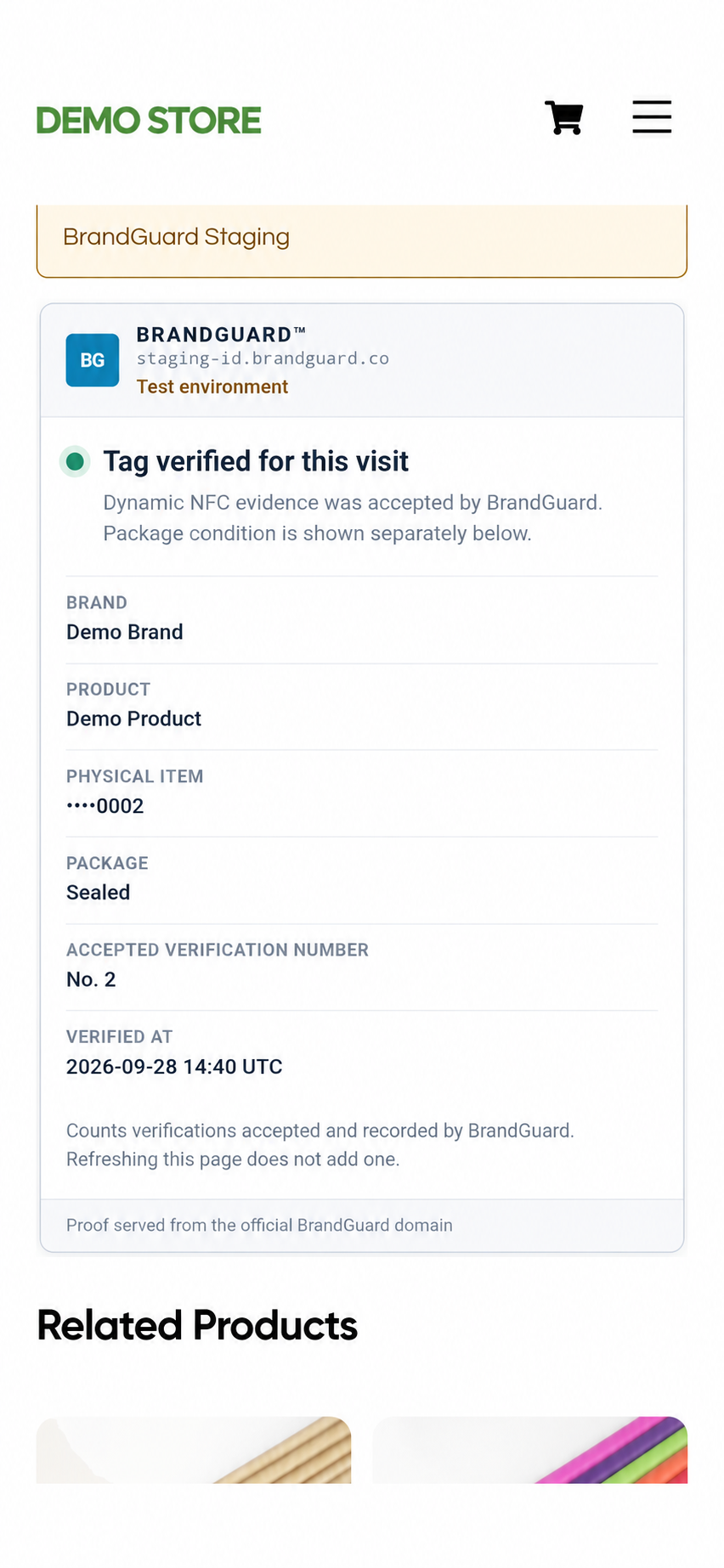
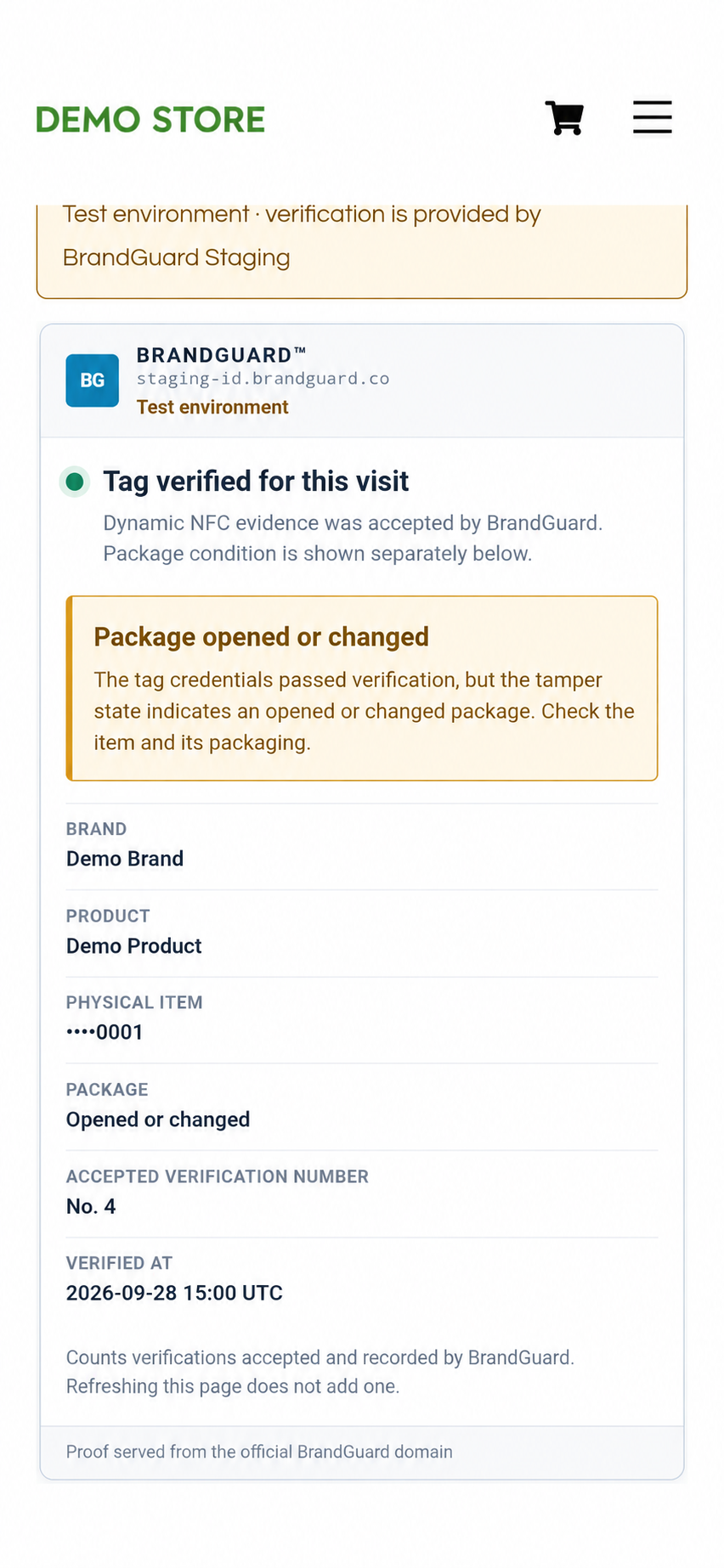
AI-assisted, anonymised illustrations based on an actual website test. The two examples show different items in a test environment.
Start with one product and try the complete journey
Have your website address, the product page you want to use, and the corresponding physical product and tag ready. Starting with one product gives your website team a clear view of the work involved and lets you see the experience as a customer would.
First, install and activate the plugin supplied by BrandGuard on your WordPress site. Follow the instructions for your plugin version to connect the site and set the product page that customers will reach after verification.
Next, decide where the panel should appear. A WooCommerce product detail page and a custom WordPress product page may have different layouts. Position the panel to suit your theme and page design, then check on a phone that it is easy to read and compare with the product information.
Finally, tap the tag on the actual product. Check that BrandGuard verifies the read, the browser reaches the right page, the panel displays the result and the product details match the item. BrandGuard can work with your website provider to confirm the setup. For further checks on finished products, see our NFC authentication label testing guide.
Give customers a useful reason to return after the sale
Bringing verification back to your store gives customers more than a result to read. They have the product in their hands and are already on its page. Once they have checked it, they can find instructions, care advice or a way to contact support. For your brand, it is a practical opportunity to help customers after delivery.
A clothing brand could keep washing instructions beside the panel, a collectibles shop could provide release details, and a packaged-product brand could add advice on use. You continue to maintain that content for your customers, while BrandGuard provides the tag verification and its display on the page.
If you want to add product authentication to a WordPress website or WooCommerce store, share your website and product requirements with BrandGuard. Together, we can confirm the tag approach, destination page and panel placement, so you can see how it would work in your own shop.
Frequently asked questions
Do I need a new website if I already use WooCommerce?
You can keep your existing store and product pages, adding the verification panel through the BrandGuard plugin. The setup should take your theme and page layout into account, with the position and appearance checked on the actual site.
Does my developer have to write a verification API?
The BrandGuard plugin packages the API connection and display functionality needed to show the official verification result. Your website provider mainly handles installation, connection settings and checking the page. Custom layouts can be discussed as part of the integration.
Does installing the plugin give every existing product NFC authentication?
The products also need suitable secure NFC tags, with their details and verification service configured in BrandGuard. The plugin handles the website part; existing product photographs and descriptions alone cannot verify a physical item.
Bring product verification to your store
Share your WordPress or WooCommerce website, product type and intended verification page with us. We can help you plan the plugin integration.
Discuss plugin integration →